

Download Ace Media Player – Free, Simple Media Playback for Windows & macOS
Overview
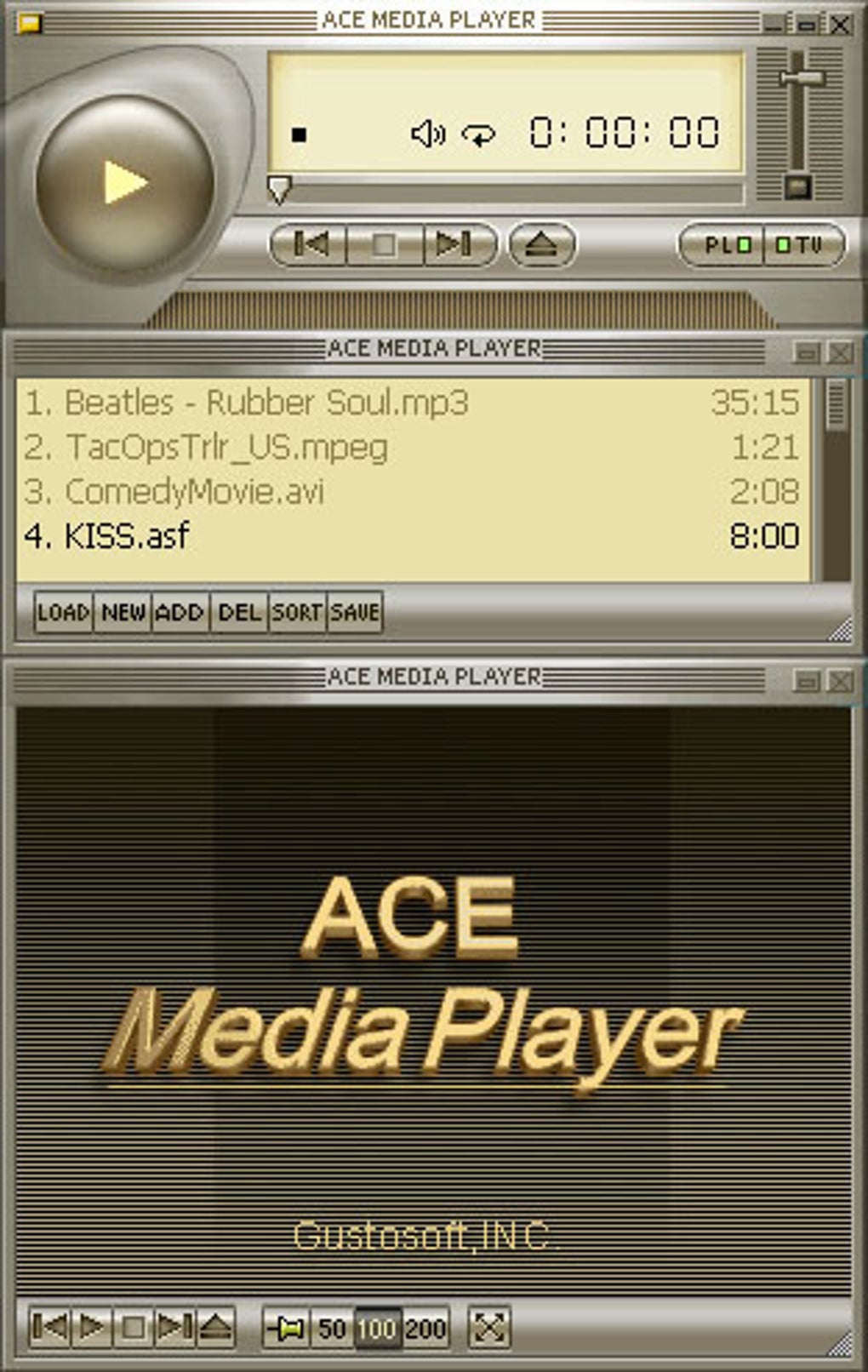
Ace Media Player positions itself as a lightweight, free media player that can handle both audio tracks and video clips without demanding a steep learning curve. The promise is simple: install the program, point it at your media library, and enjoy seamless playback across a broad range of file formats. In practice, however, the experience can feel a bit dated. The user interface sticks to a classic Windows‑style layout, lacking the modern polish you see in competitors like VLC or PotPlayer. Navigation relies heavily on menu selections rather than drag‑and‑drop, which means that adding new files often requires opening the built‑in file explorer, browsing to the desired folder, and then clicking “Open.” This extra step can feel cumbersome, especially for users accustomed to more intuitive media managers.
From a technical standpoint, Ace Media Player does support many common codecs, including MP3, AAC, WAV for audio and MP4, AVI, MKV for video. Nevertheless, the player’s codec handling is not as robust as dedicated transcoding tools, leading to occasional hiccups with less common formats. The application is free to download and install, and it does not bundle intrusive advertising, which is a plus for privacy‑conscious users. Yet, the lack of advanced features—such as playlist management, subtitle synchronization, or hardware‑accelerated decoding—places it in a niche category of “good enough” players for users who need a basic playback solution without the bells and whistles.
In short, Ace Media Player can serve as a fallback option when you need a quick way to listen to music or watch a video file without setting up a full‑featured player. Its simplicity may appeal to beginners, but power users will likely gravitate toward more capable alternatives that offer richer libraries, better UI customization, and stronger format support.
Key Features & Compatibility
Core Feature List
- Supports popular audio formats: MP3, AAC, WAV, FLAC.
- Handles common video containers: MP4, AVI, MKV, WMV.
- Basic playback controls: play, pause, stop, forward, rewind.
- Volume adjustment and mute toggle.
- Simple file‑browser integration for locating media.
- Free to download with no mandatory registration.
- Lightweight installer (under 30 MB) for quick setup.
Operating System Support
Ace Media Player is officially released for Windows 7, 8, 10, and 11 (both 32‑bit and 64‑bit). A macOS version is also available for macOS 10.13 (High Sierra) and later, though the macOS build shares the same UI constraints as its Windows counterpart. There is currently no native Android or iOS app, so mobile users will need to look for alternative solutions.
Because the application is built on standard Windows APIs, it runs comfortably on low‑end hardware and does not require a dedicated graphics card. On macOS, the player leverages the native Cocoa framework, offering comparable performance on older MacBook models. However, users should be aware that hardware acceleration is limited; playback of high‑resolution (4K) videos may result in dropped frames on modest systems.
From a security perspective, the installer is signed with a valid digital certificate, reducing the risk of malicious code. The program does not automatically update itself, so users should periodically check the official website for newer builds that may address bugs or add codec support.
Installation, Usage & Real‑World Pros/Cons
Step‑by‑Step Installation Guide
- Visit the official Ace Media Player download page and click the “Download for Windows” or “Download for macOS” button.
- Save the installer (.exe for Windows, .dmg for macOS) to a known location.
- Run the installer and follow the on‑screen prompts: accept the license agreement, choose an installation folder (default is fine for most users), and click “Install.”
- After installation completes, launch the application from the desktop shortcut or the Start menu (Windows) / Applications folder (macOS).
- When the player opens, use the “File → Open” menu to browse to a media file, or click the folder icon in the toolbar to explore your library.
How to Play Media Efficiently
Because Ace Media Player does not support drag‑and‑drop, the most efficient workflow involves pre‑organizing your files in Windows Explorer or Finder, then using the built‑in file browser to locate them. Once a file is selected, the player begins playback automatically. Basic controls appear at the bottom of the window: play/pause, stop, skip forward/back, and a volume slider. The “Playlist” button opens a minimal list view where you can add up to 20 items, but the feature lacks sorting, shuffle, or repeat options.
Pros & Cons
- Pros
- Free with no hidden fees or subscription model.
- Lightweight installer and low memory footprint.
- Supports most common audio and video codecs out of the box.
- Simple, no‑frills interface that is easy for beginners to understand.
- Signed installer reduces security concerns.
- Cons
- No drag‑and‑drop support; file navigation feels archaic.
- Lacks advanced features such as subtitle sync, equalizer, or streaming support.
- Limited playlist management (max 20 items, no shuffle).
- No automatic update mechanism; users must manually check for new versions.
- Interface appears dated compared with modern competitors.
Overall, the player delivers on its promise of basic playback, but the trade‑offs become evident quickly if you require more sophisticated media handling. For a one‑time video view or quick audio test, Ace Media Player does the job without clutter. For daily media consumption, you may find the lack of modern conveniences a hindrance.
Frequently Asked Questions
Is Ace Media Player completely free or does it contain hidden ads?
Ace Media Player is free to download and use. The installer does not bundle third‑party advertising or require a registration key. However, the developer does not currently offer a paid “Pro” version, so all features remain available at no cost.
Can I play DVDs or Blu‑ray discs with Ace Media Player?
No. Ace Media Player focuses on file‑based playback and does not include optical disc support. For DVD or Blu‑ray playback you’ll need a dedicated solution such as VLC or PowerDVD.
Does the player support subtitles for foreign‑language movies?
Subtitle handling is minimal. The player can display embedded subtitles, but it does not allow you to load external .srt or .ass files, nor does it provide timing adjustments.
Is there an automatic update feature?
No, Ace Media Player does not check for updates automatically. Users must visit the official website periodically to download the latest version.
What are the system requirements for running Ace Media Player?
Windows 7 or later (32‑bit/64‑bit) with at least 512 MB RAM and a 1 GHz processor. On macOS, you need version 10.13 or newer, 1 GB RAM, and a compatible Intel or Apple Silicon processor (via Rosetta 2 for the latter).
Conclusion & Call to Action
Ace Media Player fulfills the most basic expectation of a free media player: it can open and play a wide range of audio and video files without demanding a subscription. Its lightweight nature makes it suitable for older PCs or for users who want a no‑frills experience. However, the lack of modern conveniences—drag‑and‑drop, robust playlist tools, subtitle support, and automatic updates—means that the player quickly feels constrained when compared with industry leaders like VLC, MPC‑HC, or PotPlayer.
If you’re looking for a simple, secure way to test a single video or listen to a handful of songs, downloading Ace Media Player is a reasonable choice. For anyone who manages a sizable media library, values customizable playback, or needs advanced codec handling, investing a few minutes to install a more feature‑rich alternative will likely pay off in the long run.
Ready to give Ace Media Player a try? Free download is just a click away. Install it, explore the basic controls, and decide whether its simplicity matches your workflow. And don’t forget to revisit this review after testing—your feedback helps other users make informed choices.